HackTown
Cyber Criminal University - Home

You are not logged in. You will only be able to access the courses in GREEN from the course list.
Chapter 3 - Operating Systems (OS)
 If you've never heard of the operating systems (OS) Whonix, Tails, or Kali, or what Virtual Machines (VM) are please take a quick moment to Google those keywords.
Just to get this out of the way the two main methods used to operate online safely is running Whonix OS in a VM or booting Tails OS from a USB with persistence enabled. If you're using a Apple Silicon (Anything M series) macOS computer you CANNOT run Whonix in a VM and you CANNOT boot into Tails from USB but you can run Tails in a VM. We'll get into that later on.
If you're the unfortunate one to get your door blasted off its hinges by the police as they come barrelling in to arrest you they will find your computer or encrypted USB with all your shit on it. In the end your problems will be the same. It will all come down to whether or not you encrypted your USB or HD properly AND the passwords you used are strong enough to survive a brute force attack to crack it.
When I say USB from now on I'm referring to:
- USB
- SD Card
- MicroSD Card
- Any form of digital storage
In the next course you'll learn how to hack other Wi-Fi networks around you that way you're not using your own which will help increase your OPSec. For now though we're going to focus on making sure your computer is secure as possible. We'll get into VMs, how to encrypt your HD and USBs, and discuss Whonix VM, Tails, and Kali later on.
This chapter is designed for people who want to harden and secure their computers running Windows, macOS, or Linux. The items discussed in this chapter are meant to be applied to your computer to ensure that it's secured to the best of your ability and that you're operating safely online. It really depends on how far you need to take your OPSec but if it's anything highly illegal and private then you'll want to up it a bit
If you're doing something highly illegal regardless of what your host machine is (Windows, macOS, or Linux) you should be doing everything in a Virtual Machine (VM) and not using your host machine to run Tor directly, browse the dark web, store passwords or doing anything illegal/questionable saved directly to your HD. Anything questionable and illegal ideally should be saved onto a USB that is encrypted so you limit the amount of digital bread crumbs you'll leave behind on your laptop.
If you just heard of a "Virtual Machine (VM)" for the first time and you're like WHAT THE FUCK MAN don't stress because we'll get into installing VMs shortly and again in Chapter 6. It'll all make sense when we expand on your knowledge base and also when you re-visit this course at a later date to brush up on your skills. Google and YouTube are your friends when you come across something you've never heard of before. Make sure to understand the topics at least at the basic level. Let's touch base on Virtual Machines (VMs) and then move onto hardening OS's.
Virtual Machines (VM)
Virtual machines are an important part of any cybercriminal or hackers toolbox and it's better to do anything illegal/questionable inside of a VM which is much more safer for you.
By using a VM you isolate that operating system (OS) inside of a virtualized environment keeping everything away from your host OS and saved within the VM. If an exploit is used against the Tor Browser and you're using the Tor Browser directly from your host OS this wouldn't be good for you. It would only take (1) exploit for that application exposing your IP bringing down your whole empire. Whereas, if an exploit is used against the Tor Browser within the Whonix VM everything is isolated to that VM and not coming from your host OS which makes it much more difficult to be exploited.
If you use a VM then in order for you to be compromised or leak your IP an exploit would be needed for Whonix, Kali, Tor Browser, etc. AND an exploit would be required for VMWare, VirtualBox, Paralells, etc. to get onto your host machine. However, since you should have installed GlassWire or Littlesnitch you're now able to block an unknown outgoing connection from an unknown process, or known process, stopping that unknown connection from getting out.
Look at all that shit that needs to take place in order for you to be compromised which would require multiple 0-day exploits. Do you know how much time and money it would take to develop all those exploits?! Do you think that you're a big enough target that they're going to reveal they have all these exploits just to capture you?! Police only reveal that they used a 0-day exploit to capture someone because those criminals are a much bigger fucking fish than you're drug dealing, hacking, frauding, or carding crimes.
They're going after the true evil mother fuckers out there, not you.
When you're done with this course you'll realize people are caught by making silly mistakes such as linking a personal email to their operations and most are captured with their laptop open, running, and unencrypted. It's all about the police finding your geographical location which is what we're going to prevent from happening.
I find that some OS's work better in VMWare whereas some other OS's work better using VirtualBox. Both are good to have and use. VMWare is best for Windows VMs whereas Whonix can only be installed with VirtualBox. You'll want to install both so you can follow along without problems.
Before you understand how to run any operating system in a virtualized environment you're going to need to download and install VirtualBox and VMWare.
Anyone who uses an Apple Silicon computer (M series) CANNOT run Whonix in a VM.VirtualBox
VirtualBox is a free application that can run on Windows, macOS, and Linux based operating systems. With VirtualBox you're able to create and manage other guest virtual machines (VM) running Windows, macOS, or Linux on your main computer in a sperate window.
In the screenshot below I'm running Ubuntu in a VM on my Windows 10 computer.
As you can see I can access Ubuntu and Windows 10 with ease at the same time.

For some VMs you have an option to install the "VirtualBox Extension Pack" which improves performance and allows for more functionality and it's recommended you install it.
It's very easy to get up and running so don't think this is difficult.
Download and install VirtualBox from:
https://www.virtualbox.org
Once you've installed VirtualBox it's recommended to install the "VirtualBox Extension Pack" which you can download from:
https://www.virtualbox.org/wiki/Downloads
VMWare
https://www.vmware.com/products/desktop-hypervisor/workstation-and-fusion
VMWare Workstation (Windows) and VMWare Fusion (macOS) are now free for people to use and these applications are similiar to VirtualBox. You do need to create an account and go through the process to download it but it's all free and good to have different softwares to run your VMs. Each VM can be started, paused, and stopped independently within its own VM without affecting your host OS. It's like using your computer now within a computer that is isolated from your main computer. Your host OS and the guest VM can communicate with each other through a number of mechanisms including a shared common clipboard to copy things from your host OS to your guest VM with ease, shared folder for easy sharing of files between host OS and VM, and a virtualized network so your VMs can have Internet connectivity.
QEMU
https://www.qemu.org
Another open source and emulation platform that allows you to run VMs on a variety of hardware architectures. A little more advanced for most and not recommended when following along here. Branch out later if you feel the need to.
You can install many operating systems and use them in a VM for whatever needs you require and load them up and reset them down as required.
Keeping your OPSec on point may seem easy at first but you'll soon come to learn it's not as easy as it may seem. Each person will apply things differently that they've learned in this course depending on what their needs are. If you're operating at a cybercriminal level my recommendation to you is to use Tails or Whonix only. Maybe in the future you can graduate on to other things but Tails and Whonix makes things easiest for new people learning the anonymous craft. We'll get into it but this is my opinion.
Nothing should ever be saved onto your laptop/computer HD is what you should be aiming for except the applications needed such as VirtualBox, VeraCrypt, etc. and anything that is saved to your HD should be something normal and a rational explanation for it being there. All your diabolical plans, files, and malwares should be saved onto a USB that is encrypted at minimum.
If you plan on using a MicroSD or SD card to store all your madness then it's best to purchase one with the highest data transfer rates to get the best out of it.

First off, you should purchase your "work" laptop with cash and nothing else. This way if you do something fucking crazy attracting the attention of the police and make a mistake online nothing on that laptop/computer can be traced back to you personally. Understand? Give yourself that piece of mind. It will help.
The whole point of this course is to ensure you're safe with the worst case scenario being plausible deniability. This will save you.
Keep the laptop/computer you use for hacking, vending, carding, or whatever you're doing away from anything personally related to you at all times. This is important, don't get lazy. This means no checking your Facebook, X (Twitter), TikTok, e-mail, or any other personal accounts for any reason while you're using that laptop/computer. Never connect your laptop, computer, phone, or any other personal device to the network your dedicated "work" laptop is connected to either.
You want a new device for when you're ready to cross that legal line. The moment you connect any Windows or macOS computer, phone, iPad, etc. to the Internet you're sending all these companies a lot of information about yourself and the device that you're using. Your Microsoft account or Apple ID can be linked to your email address, credit card, geolocation, and be linked to the unique hardware serial ID of your computer.
So let's just say you decide to wipe your computer and start over. In theory these companies could have much information and see that the serial number of the computer is now associated to a different account still but still potentially linking it to you.
As you continue to use Microsoft or Apple products much more of your activity is recorded and the telemetry they collect on their customers is huge. The amount of data Microsoft and Apple are gobbling up is wild and they can 100% connect your devices to any new accounts moving forward. If you were to wipe everything and start over with a new name, email, etc. Apple or Microsoft could see the unique serial identifiers and possibly have the ability to connect the user accounts together.
Keep it separate! Easy!
Secondly, the computer you plan on using for anything illegal should never connect to your home Wi-Fi network or any other network that can be associated to your real identity.
Your work laptop can be any laptop that is capable of running multiple Virtual Machines (VM) when needed which will vary in price from $400 - $3000 USD. Purchasing your "work" laptop/computer is up to personal preference so there's no one machine for all as it depends on what you need it for but you'll want something with high RAM (8GB+) if you plan on running multiple VMs. Some people use serious beast machines for their needs from Alienware laptops, gaming PC's, and everything in between but the point is your laptop/computer should suit your needs for what you plan on using it for. You want your laptop somewhat portable (13-15 inch screens) so keep that in mind but don't over think this too much as you'll soon find out reading through this course that you actually don't need a powerful machine at all, depending on what you're doing of course.
For example, I personally use Alienware laptops <17" because I prefer the hardware that they come with for other means like gaming, Photoshop, minor GPU password cracking, fucking around with AI, and other programs that require a more expensive robust machine for when I'm not actively "hacking" or causing fucking chaos online. As a hacker, if you're involved with a hack and you're waiting for an email reply from a target or a reverse shell to come back in real time you'll have some time to kill waiting for that shell to drop. I'd be bored as fuckkkkkkkk waiting for this to happen so I'd be gaming on a wicked laptop and using Whonix in a VM connected to my VPS while waiting for that shell to drop. Some god damn employee I'd be targeting wouldn't check their emails throughout the day that frequently so I needed to kill some time and using the Tails OS wasn't satisfying my needs. Being a cyber elite hacker with 9000 shells loaded I wanted multiple VMs at my disposal so I needed a more powerful computer/laptop to do this flawlessly for me as well.
If you're a Vendor looking to sell your products on some Darkweb marketplace or an individual looking to purchase drugs online then you might be interested in purchasing a cheap portable laptop and just booting Tails OS from USB. Everyone is different you see?
My laptop has nothing to do with hardware specifications needed for committing online cybercrimes or "hacking" per se but mostly for pleasure in my down time waiting for shit to happen. There are times when I'm using a piece of shit netbook and booting the Tails OS from USB to log into a Virtual Private Server (VPS) with SSH over Tor that I purchased based in Romania. I have all my hacking programs installed on that server to use as my "front gun server" then the next day I'm using my gaming laptop to use Kali in a VM so I can hack an art gallery Wi-Fi network in order to compromise their Wi-Fi network and push ransomware to everyone on it.
Everyone is different.
Your computer should suit your needs on what you want to use it for. We're all different and there's no one way of doing things so think things over while reading this chapter before deciding what works for you based on your requirements. Whichever way you decide make sure you're using a browser that is reputable and privacy focused. Every year this changes so it's best to keep up with the professionals who are out there testing shit.
Your "work" computer should strictly be meant for "work" and "business". Period.
Remember this guy in the link below? Keep your work separate from personal things.
I'm going to discuss multiple things in the next couple of paragraphs and it's important you read through it all before making a decision on how you want to operate when stepping into the shadows of becoming a cybercriminal.
How to operate online anonymously.
- Harden your OS.
- Use Tails or Whonix.
- Always use Tor.
- Keep your work computer always separate from your personal computer.
If you're starting out in the cybercriminal/hacker world the biggest question you need to ask yourself is how do you want to operate? Do you want to use your computer running Windows, macOS, or Linux and save everything to an encrypted USB? Do you want to use only virtual machines (VM) to conduct your dark web activities? Do you want to boot the Tails OS directly from a USB stick for your shady ass business dealings? Or are you using Windows or macOS with everything encrypted on a USB in your pocket?
The answer will be different depending on what type of user you are (hacker, carder, vendor, buyer, forum lurker, etc.) and what you require from your computer. Using VMs and booting directly from a USB presents different problems and each have their weaknesses which we'll discuss so you can assess your situation making an informed decision on what best suits your needs.
For the future hackers and crackers out there once you have purchased your laptop it's important to familiarize yourself with the command line interface (CLI) or Terminal. You do not have to be an expert to use the CLI or Terminal but you should know the basic commands and what they do and when to use them. Having the basics down when using the command line or Terminal is ideal so if you don't know anything about Linux/Unix then now is a good time to learn it if you plan on getting your hacker face on. There are many basic Linux books out there that you can purchase or take an online course. YouTube has plenty of tutorials available for free as well but take the time to learn Linux/Unix and feel somewhat familiar with it. You don't need to install Linux/Unix as your primary OS but you should download VirtualBox, VMWare Fusion, or Paralells onto your computer and install a Linux distro of your choice.
We'll go over VMs in Chapter 6 but it's recommended to begin with an easier distro such as Ubuntu so you can learn the basics and get familiar with using the CLI or Terminal.
The main goal here is to feel comfortable with the command line and have the basics down. I mean the basics! That means how to navigate through directories, open files, edit text files, and how to run scripts or programs. The basics dudes... Don't mess around with the Graphical User Interface (GUI) so much but instead stick to the CLI and Terminal for learning purposes.
If you're using macOS then use Terminal.app for anything command line related as this is very similar to anything *nix related.
In my opinion everyone should learn how to use Windows Command Prompt, PowerShell, and every *nix CLI related for a good handle on all operating systems but you do you.
Figure out what works for you and use the concepts taught in this course to keep you safe regardless of whatever cybercriminal activities you get yourself into.
Alright let's get into it shall we?
Passwords
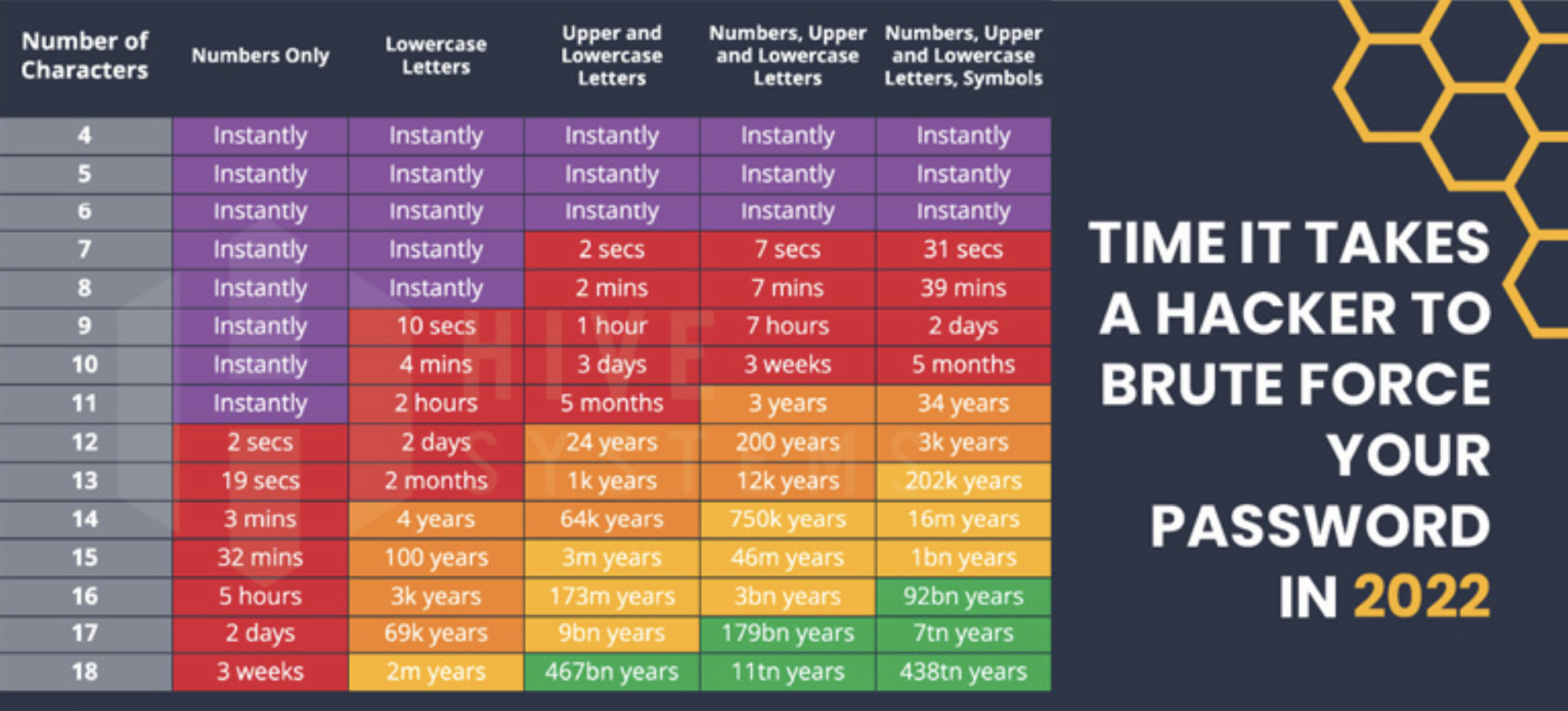
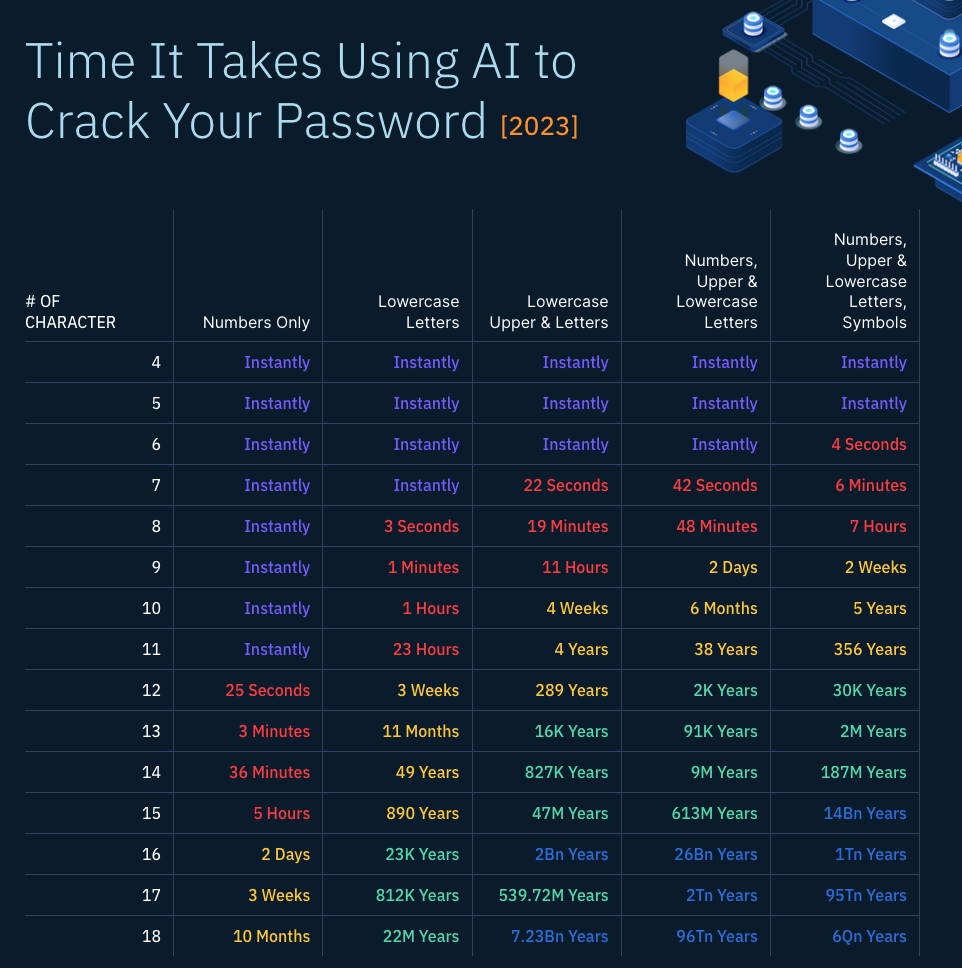
Always, always, always use a strong password/passphrase on everything you set up. Passwords can be broken by brute forcing them and many adversaries will try this on you. Make sure you've picked something secure!
Operating Systems (OS)
The problem with using Windows or macOS is that those operating systems, like many others, are constantly sending data back to their servers for analysis, marketing, data collection, and a whole bunch of other shit. This is a problem because if you're on a Wi-Fi network committing some wicked cybercrime and your computer is sending data back to your iCloud or Microsoft account linked to your identity this would be easy for police to track once they're on your tail. Right? Some investigation takes place on XYZ network and they see a connection to Apple servers at XYZ time/date and there you are connected to the Internet not realizing your computer is constantly sending data out that could be linked to your real identity.
A connection went from your laptop to a Microsoft or an Apple iCloud server, police send a subpoena to Apple or Microsoft to see where else that specific account has connected into from the past, and now they know where you live. Good job buddies. Now anywhere you go with that laptop and it makes a connection back to whatever account (iCloud, Outlook, etc.) you're giving them the ability to track you anywhere you're going with your drug selling buddies.
This is all fucking bad.
I cannot stress enough that whatever OS you're using at minimum you need to be encrypting the HD, using a VPN, saving everything to an encrypted USB, and using Virtual Machines (VM) to conduct your dark web activities or booting into Tails OS from USB. All of which we'll talk about.
You'll need to make a choice eventually on what Operating System (OS) you want to be using for your daily activities. For your DarkWeb shady ass activities I recommend starting off with using Tails or Whonix and using Windows, macOS, or Linux as your main daily OS for everything else. The reality is when you're first starting out it's doubtful you're going full tilt into using Linux as your main OS. This isn't going to happen and Linux isn't for everyone.
My personal recommendation is to use whatever operating system you feel comfortably and most familiar with at first and then branch out later on as you feel more comfortable with everything. Everyone gets all overwhelmed with this shit but start off slow and work your way up. To be clear it's not that Windows or macOS are insecure or some shit it's the fact that those operating systems aren't really designed to be anonymous so it requires much more steps to harden and secure them. Tails and Whonix does this all for you automatically without you needing to worry about too much. Still worry but not toooooo much. For those who want to make the switch over to Linux as your main OS then I recommend using Ubuntu as it's the easiest and most familiar for people to use. For simplicity it's assumed new Linux users will be using Ubuntu when we go through more into other coures.
Using Linux helps to get away from the telemetry and data collected from using Windows or macOS and on top of that using Linux reduces your chances of being infected by malware significantly.
I avoid using Windows and macOS unless I'm testing something out or trying a new techniques against that specific OS. You always want to put your theory into practice to make sure what you're doing does indeed work on Windows, macOS, or whatever operating system (person) you're targeting. You'll come to realize as you progress through your cybercriminal career is that you should be proficient with using ALL operating systems and operating safely online. This I recommend. Learn Windows, macOS, and Linux as this will help you greatly understand who you are targeting.
Either way if you decide to use Windows, macOS, or Linux you want to be running the newest and latest updates for your operating system. Don't decide you're going to use Windows but use Windows 7 on an old shitty computer. At least keep up with the times because newer operating systems have more secure features, are harder to hack, and are updated all the time. So if your "work" computer cannot run Windows 11 then you need to wake up and understand things are going to cost you money to keep you safe so update your shit.
To sum all this up:
- Use Tails or Whonix when operating online to make it easier on yourself.
- If you use macOS, Windows, or Linux as your main OS then use Whonix in a VM
- You can use macOS, Windows, or Linux as your main OS but this is not recommended.
Everyone is different but it is to be assumed you use one of the three as your main OS so let's get into the basics of hardening down your OS to ensure you're all operating safely.


Linux Users (Ubuntu)
If you're just starting out with Linux I do not recommend on using it as your host machine simply due to lack of experience and fucking things up, which your bound to do, so stick to installing it in a VM until you're comfortable using it. Most people use Windows but eventually you want to learn how to use all operating systems.
You're not going to believe this but the best way to learn Linux is to actually use Linux. Wowwwwwww. Just picture how you're operating now and aim to accomplish the same things that you do on the daily using Linux. Oh you watch all your shows on Netflix using Google Chrome? Then do the same but in Ubuntu. This isn't wizardry shit. Installing the latest Ubuntu OS in a Virtual Machine (VM) is easy to do and ensures any fuckups you make aren't done on your main computer. The lame part on my end is that I'm not here to teach you how to use Linux. You're going to have to do that on your own but don't over think this because using Ubuntu is no different then using any other OS. If you're planning to hack the planet or become a cybcercriminal master mind guess what? You're going to have to learn the basics of Linux so stop procrastinating and watching your life pass you the fuck by. There are plently of books on the topic and you just want to learn the basics first. Don't aim to be a master wizard of Linux in a day or start learning system administrative skills thinking this is what you need to do.
Slow the fuck down and just learn the basics.
Once you have the basics down you can begin to tweak your machine to your liking.
Erasing Terminal History
Running the commands below will erase your Terminal history and prevent any future commands from being written to the history file. Every time you open Terminal it will be fresh! This is also good to do on any VPS you operate on.
Open up Terminal and type:
unset HISTFILE
unset SAVEFILE
rm ~/.bash_history
ln -s /dev/null ~/.bash_history
export HISTFILESIZE=0
export HISTSIZE=0
export HISTFILE=/dev/null
export SAVEFILE=/dev/null
rm ~/.zsh_history - Kali
ln -s /dev/null ~/.zsh_history - Kali
That way whatever you're typing on the Terminal from here on won't be kept in a log and when you close the Terminal it will erase the history of the commands you made.
NYX - Cleaning Forensic Traces
https://github.com/evilsocket/nyx
In Terminal.app type:
wget https://github.com/evilsocket/nyx/raw/refs/heads/main/nyx.sh
chmod +x nyx.sh
List available modules
./nyx.sh --list
Run with dry-run first
sudo ./nyx.sh --dry-run
Run all modules
sudo ./nyx.sh --force
Remove snooping packages
Next we want to remove some packages that phone home for crash reporting's and tweak some settings.
Open up Terminal and type:
sudo apt purge apport popularity-contest -y
sudo apt autoremove
Turn off some lame settings
- Launch "Settings" from the Application Menu
- Click on "Privacy and Security".
- Click on "Location" and make sure "Automatic Device Location" is set to OFF.
- Go back to "Privacy and Security" then click on "File History & Trash" and disable "File History".
- Go back to "Privacy and Security" then click on "Diagnostics" and change to "Never".
- Go back to "Privacy and Security" then click on "Connectivity" and disable "Connectivity Checking".
Install an Anti-Virus (AV)
Yes Linux can and does get infected by malware so don't be retarded and protect yourself. Now, be mindful that AV will scan all your devious shit so make sure you set some exclusions up so it's not scanning your USBs or specific folders with your world domination plans and malware stored in them.
The most used and popular AV for Linux is ClamAV.

Open up Terminal and type:
sudo apt update
sudo apt install clamav clamav-daemon -y
Once that installs you want to stop the AV, update it, and restart it. You always want to update to the latest DB.
In Terminal
sudo service clamav-freshclam stop
sudo freshclam
That will update ClamAV virus definations and should be ran before each scan to ensure you have the latest updates.
clamscan --exclude-dir=/home/Funshine/plans
Don't let AV scan all your plans for world domination by excluding the directory you store them in.
clamscan -r -i
This will produce a scan summary. It will not delete or remove any files it detected.
clamscan -r -i --remove=yes /
This will produce a scan summary and remove any files it detected as malicious in the root directory "/".
BleachBit - System Cleaner
Everyone uses Bleachbit and I also recommend this tool.
In Terminal
sudo apt install bleachbit -y
Once you've installed it click on the lower left hand corner of your screen on the Ubuntu logo, search for bleachbit, and select the one with admin privileges.
When you launch it for the first time click on "Close". Select every option besides the "Free disk space". You can click on "Preview" to see the recommended cleaning and then click on "Clean" when ready.
You should launch BleachBit and select "Clean" before every shutdown!
Keep your system up to date for fucks sake.
In Terminal
sudo apt update && sudo apt upgrade -y
Do this on every startup and keep your shit up to date.
Tips for hardening Linux
This should be a no brainer but fuck you never know.
macOS Users
The point of this chapter is to help secure your macOS computer but first we neet to get some shit straightened out and get you up to date.
If you're running the latest macOS then you should be aware of the differences that we as cybercriminals care about between the Intel and Silicon M series computers. Depending on what type of macOS computer you're using at this moment will dictate what type of chip you have (Intel or M series).
All macOS related information, syntax, and examples at HackTown have been updated to Apple Silicon (M series) computers running the latest macOS so if you're on an Intel based macOS computer you need to get your shit updated. That being said, I've kept some older Intel macOS examples around since some people are probably stuck in the past, including the people you will eventually hack, but try to keep your shit up to date.
Here's the bad news though for the people who do keep their shit up to date. If you've heard of the Tails or Whonix operating systems you're not going to be able to run any of those as they were designed to be used. This is problematic. You won't be able to boot into Tails from a USB and Apple Silicon (M series) computers cannot run Whonix in a Virtual Machine (VM), for now.
Anyone who uses an Apple Silicon computer (M series) CANNOT run Whonix in a VM.Newer Apple computers do not allow booting into another OS from a USB due to their security architecture.
On top of that you'll have some issues when running some hacking programs within a VM as most aren't coded for the ARM64 architecture. You can get Ubuntu and Kali ARM64 VMs but still not everything works as expected with some commonly used hacking programs in my experience. I've tried to keep everything "universal" here so it's to be assumed everything works as expected unless there is a side note advising macOS Silicon users something is fucked. Most people use Windows which naturally leads to the majority of programs coded for Windows. Learn all operating systems.
OK, if your only option right now is to use your new M4 Macbook Pro that you just bought while you're learning at HackTown then you want to harden it as best you can since Whonix in a VM or booting into Tails from USB won't be an option for you.
That's reality so let that sink in. I'll give you a minute if you just dropped $5k to the face on the newest Macbook Pro and now realize you can't run Whonix or boot Tails OS from USB any of the recommened operating systems in this course or use them throughout your cybercriminal career.
The good news is that you can still run and use Tails but only in a VM. That's good because you can still follow along with the courses here at HackTown and it will also give you an opportunity to test out Tails without any issues before deciding if you want to switch over to it for your operations. I should caution you that even the Tails developers DO NOT recommend running Tails in a VM for "real world" type shit but when learning it for the first time this is fine. In my opinion anyways. In fact some of the reasons they don't recommend to run it in a VM you can solve yourself depending on your technical levels but for now using Tails in a VM is just for fun and to follow along throughout the courses. We'll get into it later.
To make shit super easy for everyone who wants to boot into Tails from a USB using a Macbook Pro then it must have been built before 2015 and have no touch bar. I was using a Macbook Pro years ago and preferred this because I felt like when people saw someone sitting in a cafe with a Macbook Pro they do not assume that's the guy running Tails from USB. Right?
Blend in with all the sheep around you.

If you're on a M series macOS computer then you're up to date on all that shit. Let's get into it now.
Using an Apple computer presents issues maintaining privacy for many because most Apple users have their email linked to an Apple ID which allows for data collection with a unique identifier. That all being said macOS is relatively easy for the average user to harden, secure, and lock down assuming you already have some sort of experience using Apple products. The latest macOS operating system "Tahoe" makes it the securest release yet and is fairly difficult to compromise with malware. Kinda.
If you're insisting on using macOS as your main OS then you need to encrypt your HD with FireVault, use encrypted USBs for all your "business" related files, use Virtual Machines (VMs), and ideally have a VPN installed paid by with anonymous crypto.
It should be noted that any new macOS computer will require an Internet connection when first initially setting up the computer. So make sure you're on an open Wi-Fi that does not require you to access a captive portal to access the Internet. Basically, if you're sitting at a coffee shop and they supply the Wi-Fi password this is ideal since if they supply the password then there should be no captive portal type login to access the Internet whereas an Open network usually would have a splash page requiring you to Accept their terms or similiar things before accessing the Internet. We don't want that.
Apple ID
When you first boot up a new or recently installed macOS computer you must have an Internet connection and you be will be prompted to provide an Apple ID or asked to create one which if you're not careful can be an OPSec problem for you. The good news is that you can choose to skip this and set one up later on or not to set one up at all, which is ideal. I can see in the future this being mandatory just like Microsoft has made account registration mandatory to install Windows 11 which is complete bullshit but for now you do not need an iCloud account to use your Mac.
Be mindful if you do not have an iCloud account then you cannot use the App Store but the good news is that you're still able to get the latest updates to apply system security updates which is what you want. You do not need an Apple ID when using a macOS computer and if you decide you want an Apple ID then you can setup an iCloud account later on.
You don't really need the App Store in my opinion since Brew manager is there which you'll learn about later. However, there are some Apps that are only available in the App store so if you need those for your daily operations then make sure you use an anonymous email when creating your Apple ID for the first time.
Turn Off Siri and Apple Intelligence
This is a no brainer.
We don't need AI crawling through out shit and reporting back to Apple HQ letting them know how shady you are. Who knows what is actually being sent back but we don't want to worry about that stuff so let's disable those AI features.
Go into "System Settings" - "Apple Intelligence & Siri" - Turn OFF Siri and Apple Inteligence and "Delete Siri and Dictation History".
Also, go into "Siri Suggestions and Privacy..." and unselect everything in here so it's not "learning" from any Applications we use. Any new application you install will be automatically set for Apple Inteligence and Siri to "Learn from" so ensure this is OFF.

Create a "Standard" Account
There's no need to be running an administrator account while you're using your macOS computer. This will limit the amount of damage someone can do and will prevent others from obtaining admin on your computer. That being said sometimes it can be difficult not to have use an admin account on the daily as you'll see when setting everything up because anything you encounter with "sudo" means you will need an Admin account to launch those commands. You'll find your balance as you progress.
To create a normal user:

Make sure the account type is set to "Standard" and fill out the details then click on "Create User". Use that account from now on and do system or security updates with the administrator account when needed.
Change Lock Screen Options
When you close your laptop lid or when the screen saver kicks in you want to make sure no one can just grab your computer and access it when you're not around. This is true for anything computer related.
When you slam that MacBook lid closed as the police comes through your door you don't want them to grab your MacBook and open the lid giving them access yes? This would be bad. Also, no need to display your username to others when they open it up as that can be beneficial for someone when they're trying to profile you or crack your password. Not knowing your username makes it harder for those people so disable that too.

FireVault
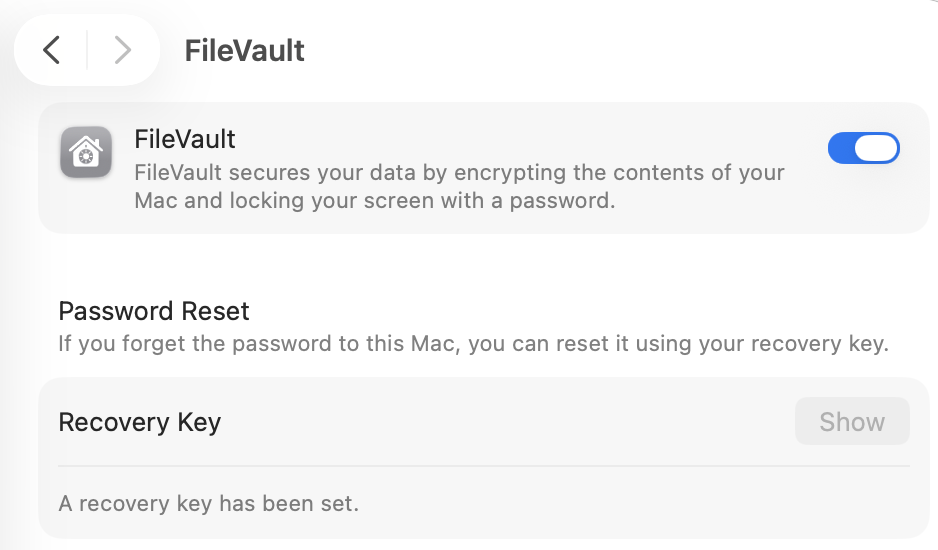
macOS users have a built in full disk encryption utility that uses AES-256 encryption to encrypt your computer so police cannot mount your HD and access your shit. This was not enabled by default in older macOS versions but with macOS Tahoe it will be set up during the first initial setup. Once FireVault is enabled you will be provided a recovery key that you should write down somewhere. When you have full disk encryption enabled you prevent anyone from getting their hands on your laptop and mounting your HD to perform any computer forensics on it. Without Firevault enabled someone could access your HD easily.
Encrypting your computer preventing people from physically accessing after they steal it from you is a must.
To enable FireVault:
- Open "System Settings"
- Select "Privacy & Security"
- Click on "FireVault" and make sure it is ON
- Save your Recovery key somewhere and do not use an iCloud account for recovery.
Enable the Firewall
- Open "System Settings".
- Select "Network".
- Turn ON "Firewall".
- Click "Options".
- Click "Block all incoming connections" or at minimum select "Enable stealth mode".

Disable Sharing
- Open "System Settings".
- Select "General".
- Select "Sharing".
- Un-Select everything.
Erasing Terminal History
Running the commands below will erase your Terminal history and prevent any future commands to be saved to the history file. Every time you open Terminal.app it will be fresh! Less digital breadcrumbs you see?
In Terminal.app type:
unset HISTFILE; unset SAVEFILE
rm ~/.bash_history
ln -s /dev/null ~/.bash_history
rm ~/.zsh_history
ln -s /dev/null ~/.zsh_history
export HISTFILESIZE=0
export HISTSIZE=0
export HISTFILE=/dev/null
export SAVEFILE=/dev/null
Install Brew manager
There are many uses for using the Brew manager especially if you didn't setup an iCloud account. If you've never used brew before it's pretty like "apt-get" for Linux.
In Terminal.app type:
/bin/bash -c "$(curl -fsSL https://raw.githubusercontent.com/Homebrew/install/HEAD/install.sh)"
Update the System
In Terminal.app type:
brew update && brew upgrade
brew cleanup -s
brew autoremove
Prevent macOS from saving Wi-Fi networks you connected to in the past
If you're an average macOS user then you probably don't pay much attention to when you automatically connect to a Wi-Fi network and how this is saved on your computer. This is important for you to know because when you've hacked onto different Wi-Fi networks this would come up during an investigation using computer forensics on your machine. There's also no need to save the networks so they automatically connect without you initiating it. We want full control.
In Terminal.app type:
networksetup -listpreferredwirelessnetworks en0 | grep -v "Preferred networks"
Replace "en0" with your Wi-Fi card interface (if it's not "en0" it'll be "en1").
If you see a list of saved networks you've connected to this obviously would not be good if you used XYZ network to do evil things and they now have your computer right? Let's clear all those logs.
sudo networksetup -removeallpreferredwirelessnetworks en0
OR
- Click on "System Settings"
- Click on "Network"
- Change "Ask to join networks" to "Off".
- Click on "Advanced" then forget all the networks saved here.
It's important to "Forget" every network you end up connecting to because macOS has a bad habit of saving these for you which will include the same MAC address if you're not careful. Cut that connection to you since there is no need to keep a digital trail of all the W-Fi networks you connected to so others can follow bread crumbs. Fuck that.
Delete all the logs
In Terminal.app type:
sudo rm -rf /var/db/receipts/* /Library/Receipts/InstallHistory.plist /private/var/log/* /private/var/logs/* /var/log/* /var/logs/* /Library/Logs/*
sudo log erase --all
Mole - Deep clean and optimization of macOS
https://github.com/tw93/Mole
Make sure you have Homebrew already installed.
In Terminal.app type:
brew install mole
mo update
mo clean
mo
For an interactive menu
NYX - Cleaning Forensic Traces
https://github.com/evilsocket/nyx
In Terminal.app type:
wget https://github.com/evilsocket/nyx/raw/refs/heads/main/nyx.sh
chmod +x nyx.sh
List available modules
./nyx.sh --list
Run with dry-run first
sudo ./nyx.sh --dry-run
Run all modules
sudo ./nyx.sh --force
Install Oversight
https://objective-see.org/products/oversight.html
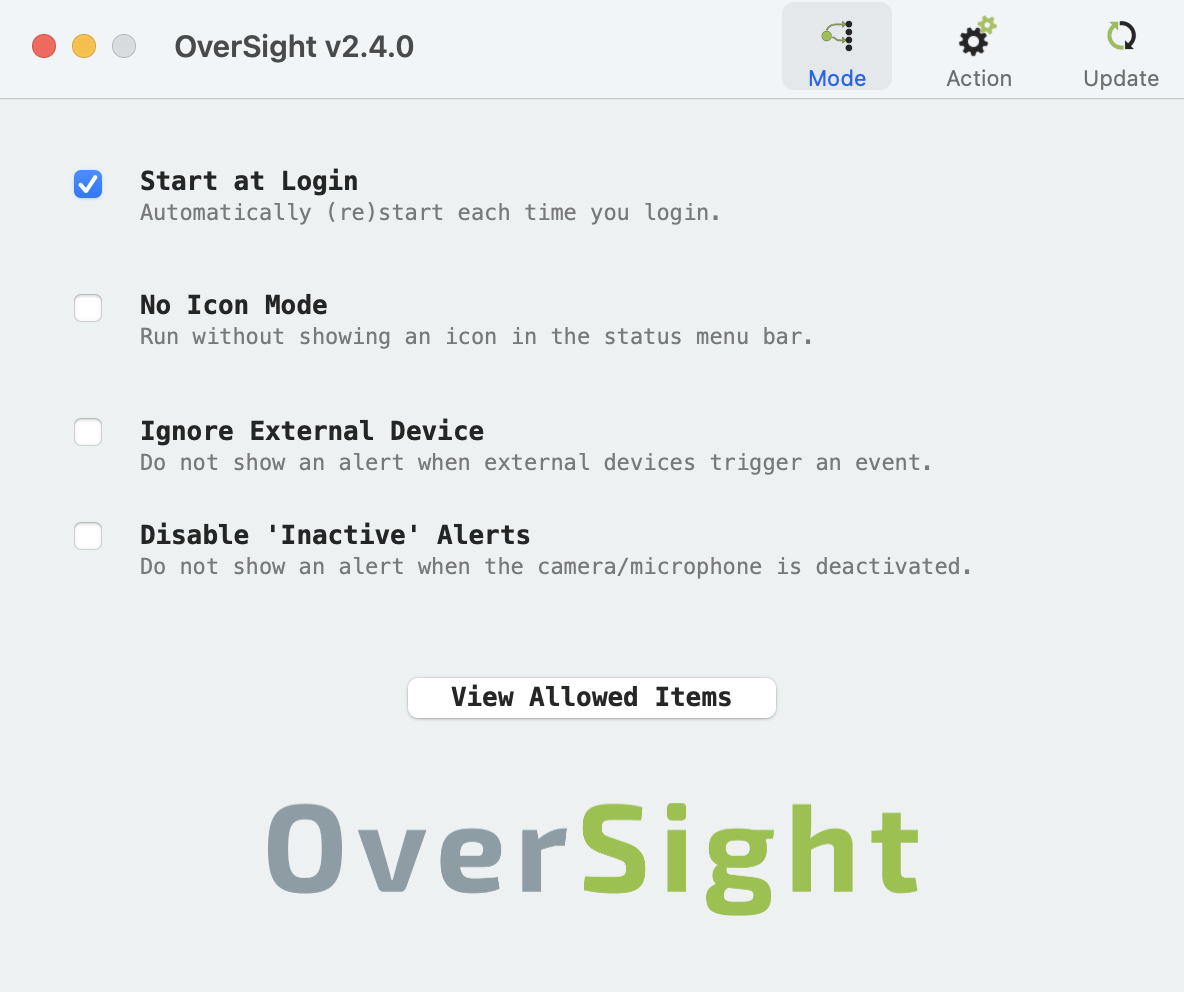
Many applications will use your webcam and microphone without you even knowing about it or asking you for permission. Apple does a good job on giving you some control of what is allowed and what is not in your System Settings. However, it doesn't hurt to have another aide to see what your computer is doing giving you more control over it. OverSight will notify you of any attempts or usage of your microphone or webcam so you know what is what preventing you from being spied on.
In Terminal.app type:
brew update && brew install oversight
Navigate to your Applications, launch OverSight.app, and ensure "Start at login" is checked.
Install Knock Knock
https://objective-see.org/products/knockknock.html
This application will let you easily see what's persistently installed on your computer (what automatically runs at each boot-up).
In Terminal.app type:
brew install knockknock
Install Block Block
https://objective-see.org/products/blockblock.html
This program will allow you to see what programs are trying to install persistent items on your computer and allows you the option to allow or deny this from happening.
Install DoNotDisturb
https://objective-see.org/products/donotdisturb.html
This program will allow you to see when and what has opened up your macbook lid notifying you that someone tried to open your laptop lid when you were away or distracted. It can also run scripts for when the lid gets opened which is good because you could write a script that launches when the laptop lid is opened that deletes your whole harddrive if not stopped in time.
Install Network monitor
LuLu - https://objective-see.org/products/lulu.html
OR
Pay for Alternatives to LuLu:
LittleSnitch - https://www.obdev.at/products/littlesnitch/index.html
RadioSilence - https://radiosilenceapp.com
We've already talked about it before but if you're using Tor on any network causing fucking mayhem and your computer is making connections to your Apple iCloud account or other accounts without you knowing behind your back that's probably not a great idea is it? We can prevent this from happening by using those tools.
You can deny or allow any connection from your computer giving you the opportunity to deny anything going to Apple and then allowing every connection to Apple when you're on an open or hacked Wi-Fi network keeping everything up to date.
These applications take a little time getting used to them at first but the more you use these tools the more you understand the value of them. Use them to get full contorl over your macOS computer and make sure any Internet connection is controlled by you.
You can install LuLu easily using brew.
In Terminal.app type:
brew install lulu
Use USBKill
https://github.com/hephaest0s/usbkill
This application is designed to safeguard your system by monitoring USB ports. Once a USB is plugged into your computer your machine will either shutdown or perform some sort of action designed by you. Most people who are caught red handed have their laptops open and unlocked. The police commonly uses a "mouse jiggler" to keep the screensaver and sleep mode from activating which requires them to plug it into a USB port on your computer. Once you have everything up and running you don't want someone random just plugging in a USB to your computer do you?
Tips for hardening macOS
Windows Users
You should purchase a laptop running the Windows 11 Pro version so you're given the option to encrypt your HD with BitLocker. Without the "Pro" version this will not be an option and is a must to keep your computer secure. If you are running Windows Home version this is not acceptable as you cannot encrypt your HD with Bitlocker. BitLocker is your friend and is required to encrypt your hard drive.
All Windows related information, syntax, and examples at HackTown have been updated to Windows 11 Pro so if you're still running Windows 10 you need to get your shit updated. That being said, I've kept some older Windows 10 examples around since some people are probably stuck in the past, including the people you will eventually hack, but try to keep your shit up to date.
Windows users are generally the main targets of hackers and Law Enforcement (LE) as the majority of the people who use computers have Windows installed as their main OS with the default settings left on. Windows has a large attack surface which presents many ways for a Windows user to be compromised by malware. On top of that Microsoft Copilot and their AI bullshit make using Windows not ideal for anything to do with privacy, especially criminal related shit.
If you're insisting on using Windows as your main OS then you need to encrypt your HD with BitLocker, use encrypted USBs for all your "business" related items, use Virtual Machines (VMs), disable anything to do with copilot and artificial intelligence, and ideally have a VPN installed at minimum.
Removal of AI and Declutter Windows
https://github.com/Raphire/Win11Debloat
https://github.com/zoicware/RemoveWindowsAI
There are multiple projects on the go to help disable telemetry as well as perform various other changes to customize, declutter, and improve Windows OPSec. I've included (2) projects that are up to date and relevant. I run both of them as sometimes one is ahead of the other in regards to techniques and removal options.
Windows Accounts
By default Windows 10 and 11 require a Microsoft account when installing the operating system (OS). Depending on your version of Windows you might be able to bypass this by ensuring your computer is not connected to the Internet and when prompted select "Create account later". This will allow you to create a local account but most people will encounter that they must have an Internet connection and must sign up for an account.
I'd recommend in assuming you require an account and Internet connection when first setting up your Windows computer. Be prepared and make sure you're connected to a Wi-Fi network and have a buner email ready to go to receive registration codes to. If you need a burner email head over to Chapter 10.
Just like macOS you don't need a Microsoft account in order to download and install the latest software and security updates. By not creating an account means you don't have to give Microsoft your name, home address, email account, and more for them to collect more data on you but it seems those days of not having a Microsoft account are going bye bye so get your buner emails ready when setting up Windows 11 for the first time!
Initial Install
When installing your OS you can choose "Express Settings" or "Customize Settings". Choose the Customize Settings option and disable everything you seen on that screen. This will stop a lot of snooping around on your Windows computer and reduce some of the telemetry data collected by Microsoft.
Create a "Standard" Account
Windows 11
To create a Standard account:

Next, we'll select "Add account" beside "Add other user".
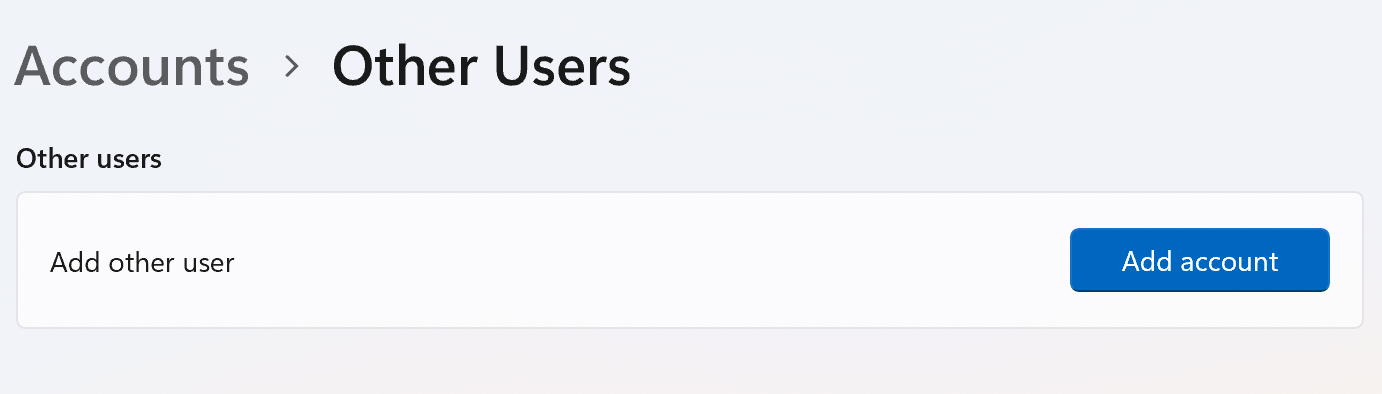
Select a username, password, and complete the security questions.

That's it. You now have a local account you can use and switch over to your administrator account when needed.
Windows 10
To create a Standard account:
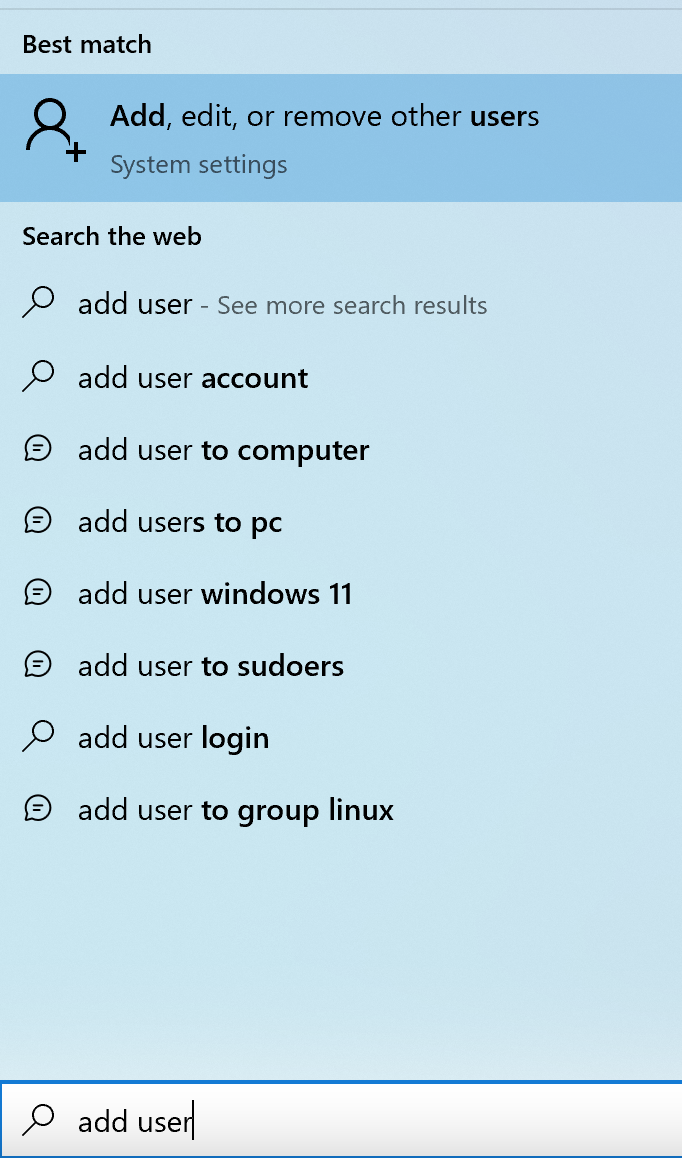


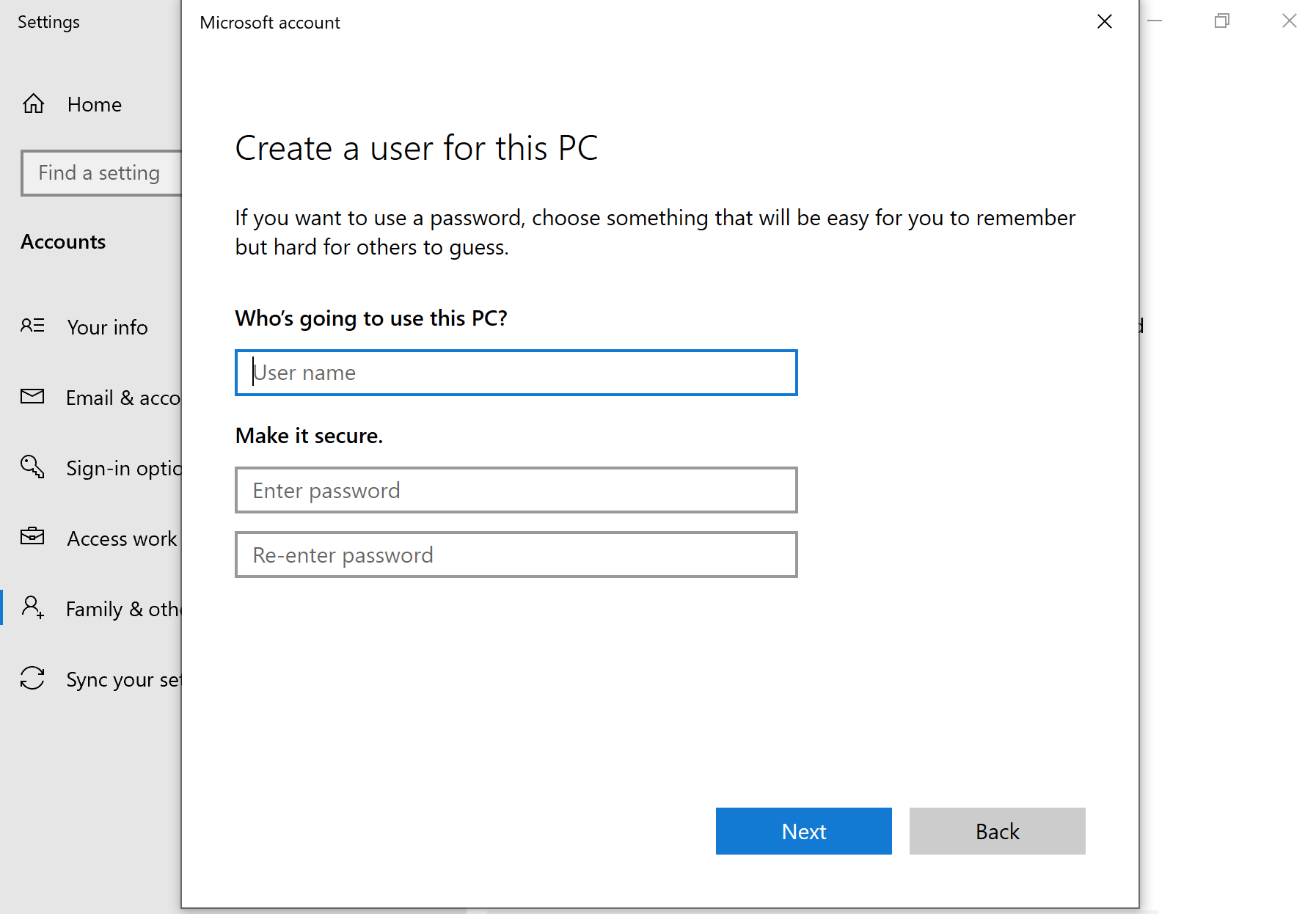
Once you have finished setting up your computer you should only login to your "Standard" account and only use the Administrator account when needed.
Enable Full-Disk Encryption (BitLocker)
Microsoft has its own built in full disk encryption utility called BitLocker which is enabled by default on Windows 11. Unfortunately, only Windows Pro version users are offered this so if you don't have the Pro version I'm afraid you need to go purchase it or else you're exposing yourself greatly.
Windows 11
Enabled by default on install.
Windows 10
After successfully enabling BitLocker you will ensure your computer is safe from any thieves or police that gets their hands on it. If someone has access to your HD there is no way they can mount the drive and read the data or perform some sort of computer forensic analysis of it as long as BitLocker is enabled.
Just a side note about Bitlocker. Microsoft has stated that it will cooperate with the FBI to unlock encrypted data on Windows PCs if legally requested. BitLocker encryption keys that are backed up to the cloud through your Microsoft Account are stored unencrypted on Microsoft's servers. This means the company can access these keys and provide them to law enforcement when presented with a valid legal order. According to Forbes, Microsoft complied with such a request in early 2025 resulting in them handing over the encryption keys for a device that the FBI already possessed. This should give Windows users pause before storing their BitLocker keys in Microsoft's cloud. With Windows 11 requiring a Microsoft Account that means your device may already be automatically backing up encryption keys online.
You can check this out yourself if you're already using Windows 10 or 11 by going to https://aka.ms/myrecoverykey and logging. Get ready to blow your top.
System Cleaner
https://www.bleachbit.org/download/windows
With BleachBit you can free up the cache, delete cookies, clear Internet history, shred temporary files, delete logs, and discard junk you didn't even know was there.
When you launch BleachBit select all available options besides the "Wipe Free Space" option and launch this program each time before you shutdown your computer.
You can also use Windows built in "Cipher" feature that will effectively "shred" all the files that have been deleted. This process can take quite a long time so make sure you have the time set aside to let it complete. For best results make sure you close all Applications that are running so any temporary files created by those applications can be cleaned up with Cipher. This will only affect the already deleted files and will not affect anything else.
In a Command Prompt run as an Administrator:
cipher /w:C:

GlassWire
https://www.glasswire.com
Control all incoming and outgoing network connections from your computer is a must. We've already talked about it before but if you're using Tor on any network causing fucking mayhem and your computer is making connections to your Microsoft account or any other account that is linked to you without you knowing that's probably not a great idea is it? We can prevent this from happening by using applications like GlassWire.
Using an application like this does take a little time getting used to at first but the more you use these tools the more you understand the value of them. Once you connect to a network you want full control over what and who your computer makes a conection to.
These programs are good because you can deny anything Microsoft from leaving or connecting to you and then when you're on an open or hacked Wi-Fi network you can allow those connections to keep your computer up to date.
You can use the trial version over and over if you take a snapshot of your machine and use a new email address each time. There is also a paid option available too.
Clear the logs
Windows logs a lot of random things and it is difficult to ensure all bread crumbs are cleaned up. Try and remove your command history if possible. This is not an exhaustive list as Windows is a spying machine so take it all with a grain of salt.
A lot of hackers will use PowerShell but don't realize they're leaving a lot of bread crumbs behind on their machines. If you've used PowerShell on your computer you can pull all your history from PSReadLine History file as you'll learn about below.
PSReadLine
PsReadLine is a PowerShell module that can do a variety of things but also stores all the history of any PowerShell commands previously run on your Windows machine. If you're a PowerShell user you can check this by typing the following into the Command Prompt:
powershell -exec bypass -c "get-content \Users\*\AppData\Roaming\Microsoft\Windows\PowerShell\PSReadline\ConsoleHost_history.txt"
If you've used PowerShell in the past then all the commands you've ever typed will be displayed here. This can be problematic if your Windows computer has been seized and someone is doing Computer Forensics on it you see?
Prefetch
Prefetch is a caching technique used by Windows where an application is monitored and catalogued for the first few seconds when it's launched for the sole purpose of when it's re-launched it's more efficient if needed. In the "C:\windows\Prefetch" directory is where all this is stored and can be access by running the Command Prompt with Administrator privileges.
If you're running some malicious hacking program but think there are no records of it running you're incorrect. We can check what has been ran and what is running by issuing a specific command in PowerShell. We can specify it to be sorted by the files recently written to show you the executables recently ran on the computer.
In a Command Prompt run as an Administrator:
powershell -exec bypass
dir '\Windows\Prefetch' | sort LastWriteTime -desc
As you can see there are plenty of places where Windows stores information on your activities.
We can wipe some of these by issuing the following commands.
In a Command Prompt run as an Administrator:
reg add "HKEY_LOCAL_MACHINE\SYSTEM\CurrentControlSet\Control\Session Manager\Memory Management\PrefetchParameters" /v EnablePrefetcher /t REG_DWORD /d 0 /f
Disables Prefetch
powershell -exec bypass -c "Set-PSReadlineOption -HistorySaveStyle SaveNothing"
Disables PowerShell history
powershell -exec bypass -c "remove-item -force -path $env:APPDATA\Microsoft\Windows\PowerShell\PSReadLine\ConsoleHost_history.txt"
Deletes PowerShell History
Clearing Windows Event Logs
There are certain logs that Windows stores that are a digital forensic investigators wet dream. It's a good idea to clear these before each shutdown.
To clear all the event logs in Windows:
In a Command Prompt run as an Administrator:
for /F "tokens=*" %1 in ('wevtutil.exe el') DO wevtutil.exe cl "%1"
NYX - Cleaning Forensic Traces
https://github.com/evilsocket/nyx
In a PowerShell Prompt run as an Administrator:
Invoke-WebRequest -Uri "https://github.com/evilsocket/nyx/raw/refs/heads/main/nyx.ps1" -OutFile "nyx.ps1"
List available modules
.\nyx.ps1 --list
Run with dry-run first
.\nyx.ps1 -DryRun
Run all modules
.\nyx.ps1 -Force
Advanced mode with memory hardening
.\nyx.ps1 -Advanced -Force
Flush the memory cache in Windows
In a Command Prompt run as an Administrator:
%windir%\system32\rundll32.exe advapi32.dll,ProcessIdleTasks
Tips for hardening Windows
Adding Glasswire, LuLu, RadioSilence, or LittleSnitch products to your Windows or macOS computer will give you the ability to have full control over your computer giving you the confidence that every connection coming and going from your computer is initiated by you and you only. Once you have one of these installed any new outgoing connection can be intercepted and blocked as you see fit. I recommend installing these programs first then going to your local coffee shop and connect to the Wi-Fi network to see how many outgoing connections are intercepted and block accordingly (besides the required networking protocols of course). In time you'll ensure that the only outgoing/incoming connections from your laptop will be something you initiated and expect. No surprises.
If you're using Windows or macOS you want full control over what data leaves and enters your computer. Do this now.
There are so many different "anonymous" configurations that may appeal to others as there are many other things you can do to help harden your OS. Although many are optional in my opinion you might find the link below useful.
Lastly, place a sticker over your webcam, should you have one, to ensure that if you do get hacked this won't be used against you. The CIA director did this at one point and so should you.
If you're having problems always Google and research your question as you'll find there are plenty of helpful forums, posts, and more out there that will answer your question(s). It's recommended to keep whatever logins, passwords, or sensitive information encrypted with the encryption of your choice on a USB, in a VM, or an encrypted container on your host machine that's proven to be effective in the current time of this writing. If the Windows (BitLocker), macOS (FireVault), or Linux (LUKS) encryption methods are broken you should expect that to make the news so don't be too paranoid on thinking their encryption is backdoored because this would make major news should it fall apart.
If police have seized your computer they will have your all your unencrypted and encrypted folders, files, and all your shit. It doesn't matter whether you're using Whonix, Tails, etc. because when the cops show up at your house knocking on your door it all comes down to encryption and whether or not you took the proper steps to keep your ass out of jail. Your only safety net is having everything encrypted and stored properly with the main goal of having plausible deniability along with knowing that the encryption you used will stand up to current digital forensics and brute force attacks.
If they have tracked you to your physical location and are now investigating, questioning, and interrogating you then it's up to your physical security to keep you out of harm's way. If you follow the courses offered here at HackTown you'll know how to be a digital ghost so you won't have to even fucking worry about that kind of shit or you can still flip your shit after each marketplace take down, vendor arrest, etc. Whichever bro.
The harsh reality is you should always be doing your dark web activities or anything illegal through Whonix VM on your computer or booting Tails OS directly from USB. Get out of the mentality of using everything on your host OS as this is not safe for you.
Picture this. You're selling drugs online and you've logged into your vendor account on a compromised darknet marketplace owned by police and a Tor Browser exploit is used against everyone connecting to that marketplace who are logged into their accounts. Right now as you're reading this your laptop is compromised and a network connection went from your laptop to a command and control (C&C) server owned by the police. If that happened then they would know your IP, your location, and they're now closing in on you about to make an arrest. Would you even know that you leaked your location or a connection went from your computer to the police?
If your computer sent data from your laptop to a remote server would you know? How would you? Would you notice anything different while using the Tor Browser on your Windows, macOS, or Linux computer? How about when you're using Tails or any other OS? Think about that for a second. All you're doing is blindly trusting the Tor project developers, Windows, macOS, Linux, Tails OS developers, etc. that everything is all good. You have no god damn idea if it's all good which is like %99.9 of all Tor users in my opinion. Everyone just trusts these programs are secure and blindly uses it for their illegal activities online. Is everyone just crossing their fingers that all this shit is legit and performing illegal activities from their home networks while using their personal emails to register for illegal shit? The answer is "YES", which is fucked. Blind trust is never a good idea.
There are always exploits waiting for you and some you don't even know are possible.

Tor Internet traffic is encrypted and routed through (3) different nodes until it reaches its destination.
An exploit for Tor Browser v8.5.2 was found being exploited in the wild on June 20, 2019 and an immediate critical patch was updated which resulted in the Tor Browser Bundle (TBB) v8.5.3 being released. Exploits are found all the fucking time and to consider anything Tor, Tails, Windows, macOS, Ubuntu, Whonix, Qubes, etc. to be somehow immune to exploits is fucking retarded. Stop being retarded and plan for everything to betray you :)
An exploit was used against the Tails OS in 2020 to catch a fucking piece of garbage.
Another exploit found in the Tails OS Tor Browser in 2022.
In the link below is the exact type of vulnerability why people should disable JavaScript in the Tor Browser/Firefox web browser. These exploits still tend to pop up in modern web browsers from time to time.
The point I want to make is that we know 0-day exploits have been used against the tools we use to remain anonymous and that those exploits will be bad and have devastating consequences for us. If you're browsing your favorite Dark Market looking for some cocaine to shovel right to your face and an exploit is used against the Tor browser that you're using while logged into your drug vendor/buyer account, guess what? Game over. You just showed them your real location while logged in to your vendor or buyer account. Congratulations fucko.
Really think that over for a second. If you've been compromised and you've leaked your IP revealing your true location you wouldn't have a god damn clue whether it happened or not regardless if you're running Tails, Whonix, Kali, Windows, macOS, or any other OS. The end result is the same. Your IP is leaked compromising you and you should be getting ready for jail any day now. The reality is that most people are trusting the applications they're using won't somehow be vulnerable to exploits and people are crossing their fingers that everything is golden but we know that's stupid since we know exploits are dropped on the daily so why is any application/tool that you're using any different?
I just want to let that sit with you.
This is why it's important to have full control over your computer and to ensure every connection coming and going to your laptop is initiated by you, nothing personal is on that computer, and that your hard drives/USBs are all encrypted properly. In the future you will add hacked Wi-Fi networks to that list to make sure then when and if an exploit is used you will never reveal your true location.
Using the Tor Browser
This applies to EVERYONE whether you're using Tails, Whonix, Linux, macOS, or Windows as your main OS. Let's talk about what settings you should be using while using the Tor Browser. I've already told you in this course that when you're viewing the content here at HackTown you want to have the privacy settings set to "Standard" which is the default settings for the Tor Browser so that everything works as expected. Once you start messing around with these settings you can break most, if not all, websites you're trying to visit. This is no good from a user perspective since most web sites won't function properly with JavaScript disabled.
Now, here's where lies the problem.
You don't want to leave digital breadcrumbs for anyone targeting you but you want to be able to surf the web freely and anonymously yes? Let me show you how this affects everyone using the Tor Browser.
First make sure your Tor Browser settings are left on the Default settings. Make sure that when you launched Tor Browser for the first time it's on those settings and you haven't fucked with them. If you haven't changed any of your settings this is good but if you have changed them make sure they're back on the default settings so you can follow along.
Ok so whether you're using the Tor Browser in Tails, Whonix, macOS, Windows, or Linux with the default settings on you will reveal your OS to whatever website you're visiting. Imagine this for a second that I had evil intentions so I coded HackTown in a way that can reveal what OS every member is using by visiting a specific webpage somewhere on my site. At first you think who cares right? But! If you're using Windows and browsing HackTown with the Tor Browser with default settings left on I will be able to determine that you are using Windows and begin to tailor my attacks towards a Windows user AND I would know what type of malware to send you. This is no good right?
I want you to browse to the following website below using the Tor Browser and take note of what the website was able to determine about you. Sometimes the website below blocks Tor IP so if you are blocked grab a new Tor identity and try try again.
If the link above is blocking you try different ones.
Most importantly if you look at "Operating System" section it will display what the Tor Browser User-Agent tries to imitate which usually is "Windows 10 version 10.0, or Windows Server 2016 or 2019 version 10.0". However, you'll notice right under that section the "True Operating System Core:" which will have the OS you are actually using displayed to you!
This is true if you're using Tails, Whonix, Windows, macOS, etc.
The Tor Browser will always leak your true OS whether you like it or not. Usually this is not a problem. However, if someone wants to target you this information will be invaluable to them. Right? Now we know what OS you're using and now we should deliver the proper malware in order to compromise you. There's no need to reveal this to anyone or anything and you should not overlook this especially when browsing or logging into other Tor websites. Like what the fuck are they up to? Something? Nothing? Who knows.
In order to prevent leaking your true OS we must disable JavaScript completely and adjust our privacy settings in the Tor Browser.
Click on the Settings icon just right of the URL bar as seen in the screenshot below and change it from "Standard" to "Safest".


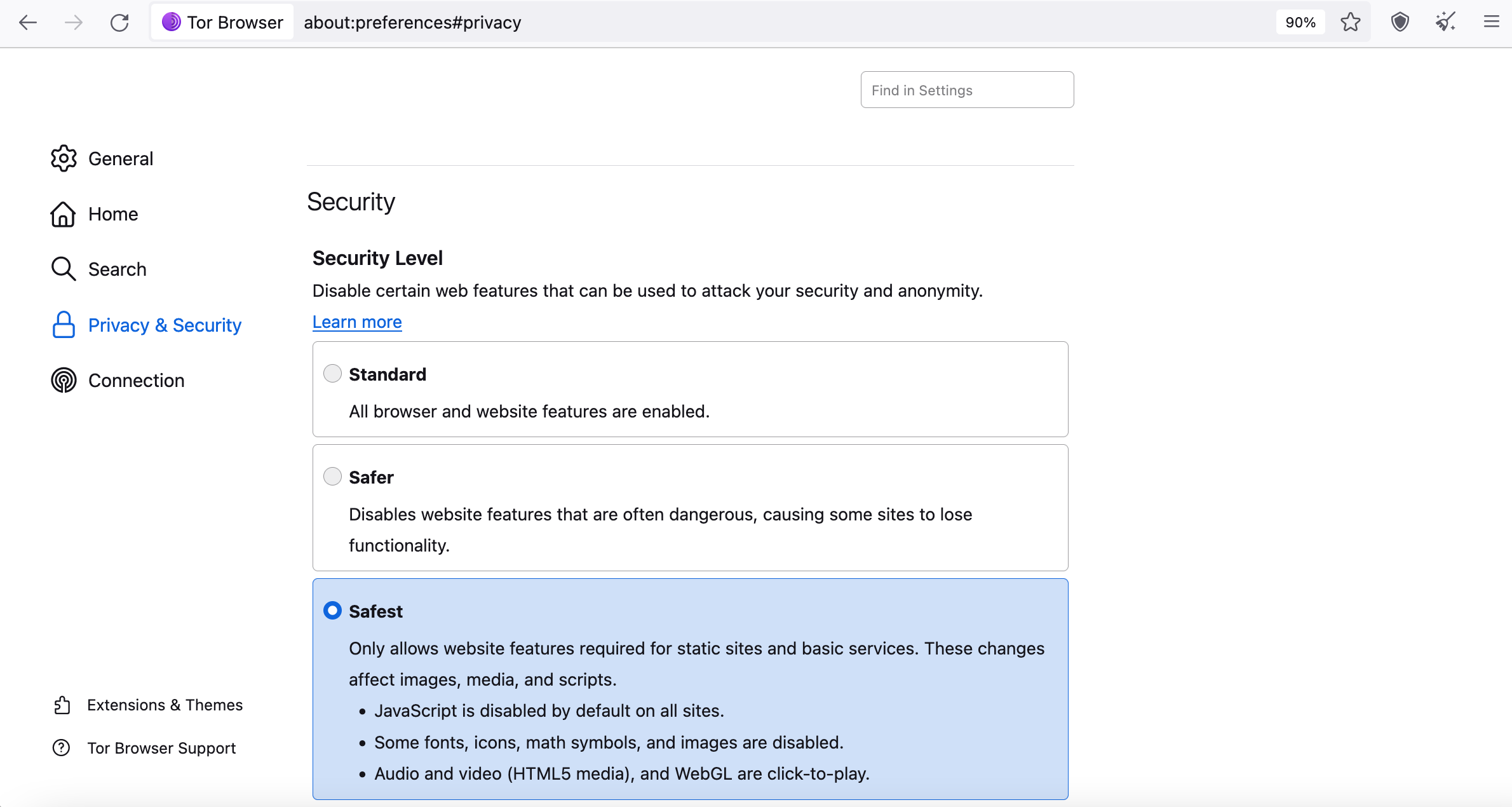
Next we need to manually turn off JavaScript so we know for sure it's disabled.
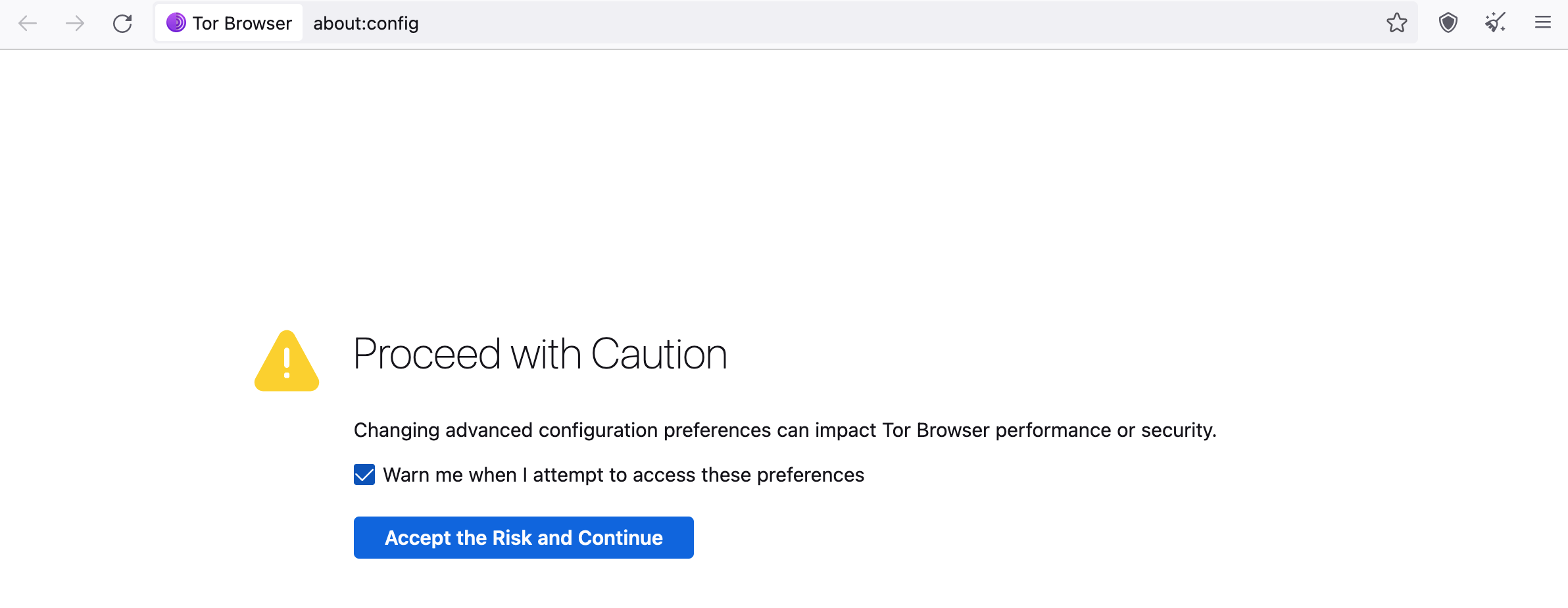
Using Tor Browser type the following into the URL and hit enter:
about:config
Type "javascript" into the search bar and make sure "javascript.enabled" is set to "false". Double click it to change the value to false.

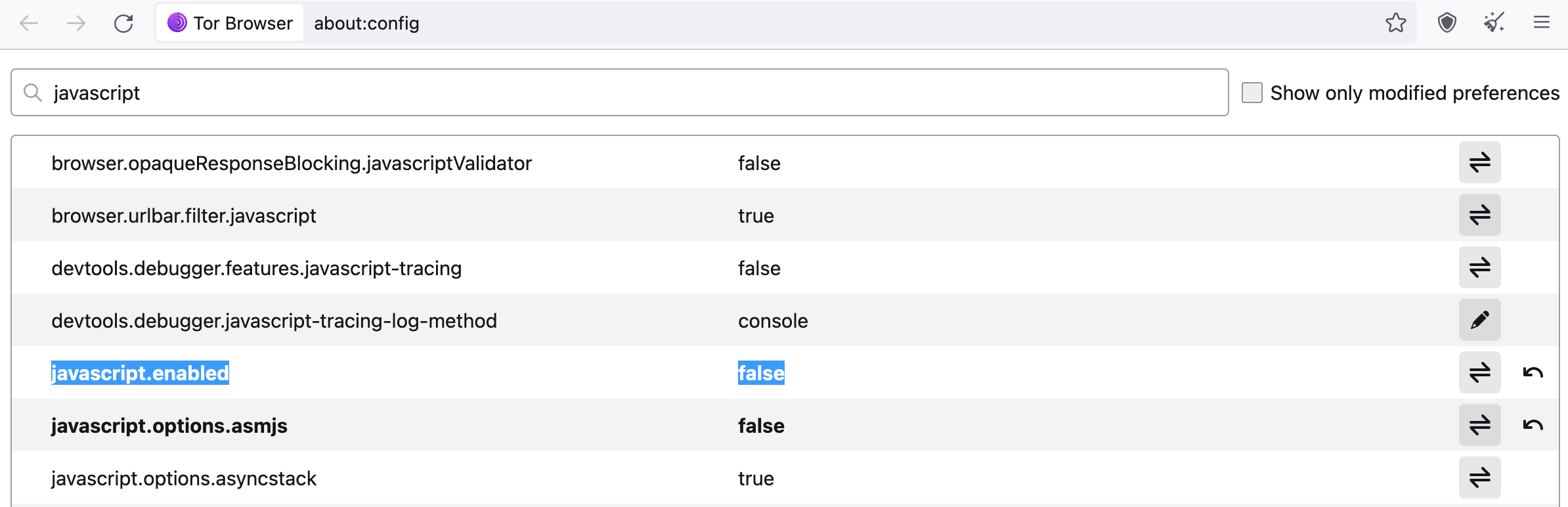
If you're using Tails OS you must do this every reboot whereas using other operating systems you need to do this once.
Ok now check your fingerprint again at the website below to see the difference.
If the link above is blocking you try different ones.
Do you see the difference? This is why disabled JS or knowing when you have to enable JS is important. For the paranoid ultra you want it disabled.
If you're using the Tor Browser or have configured the browser yourself you want to ensure you're not leaking anything DNS related and is good for piece of mind.
The next course at HackTown (ACT I) is where you'll learn some hacking skills on how to hack the Wi-Fi networks around you. That skill is important to have because if an exploit is used against you and your IP is leaked it won't be your Wi-Fi network linked to your actual location so you can continue on with your chaotic adventures not worried about it.
Knowing how to hack Wi-Fi networks is also important for when you're committing online fraud because you want fresh residential IPs that are not known for fraud or blacklisted, yet ;)
For now, keep reading through this course and complete it. Then, when you're ready you can read and complete ACT I so you're able to incorporate Wi-Fi hacking into your toolkit giving you the ability to use other people's Wi-Fi networks to ensure maximum anonymity while operating online.